
How to Make a Company Expense Report: Excel Templates, Rules, and When to Go for Automation
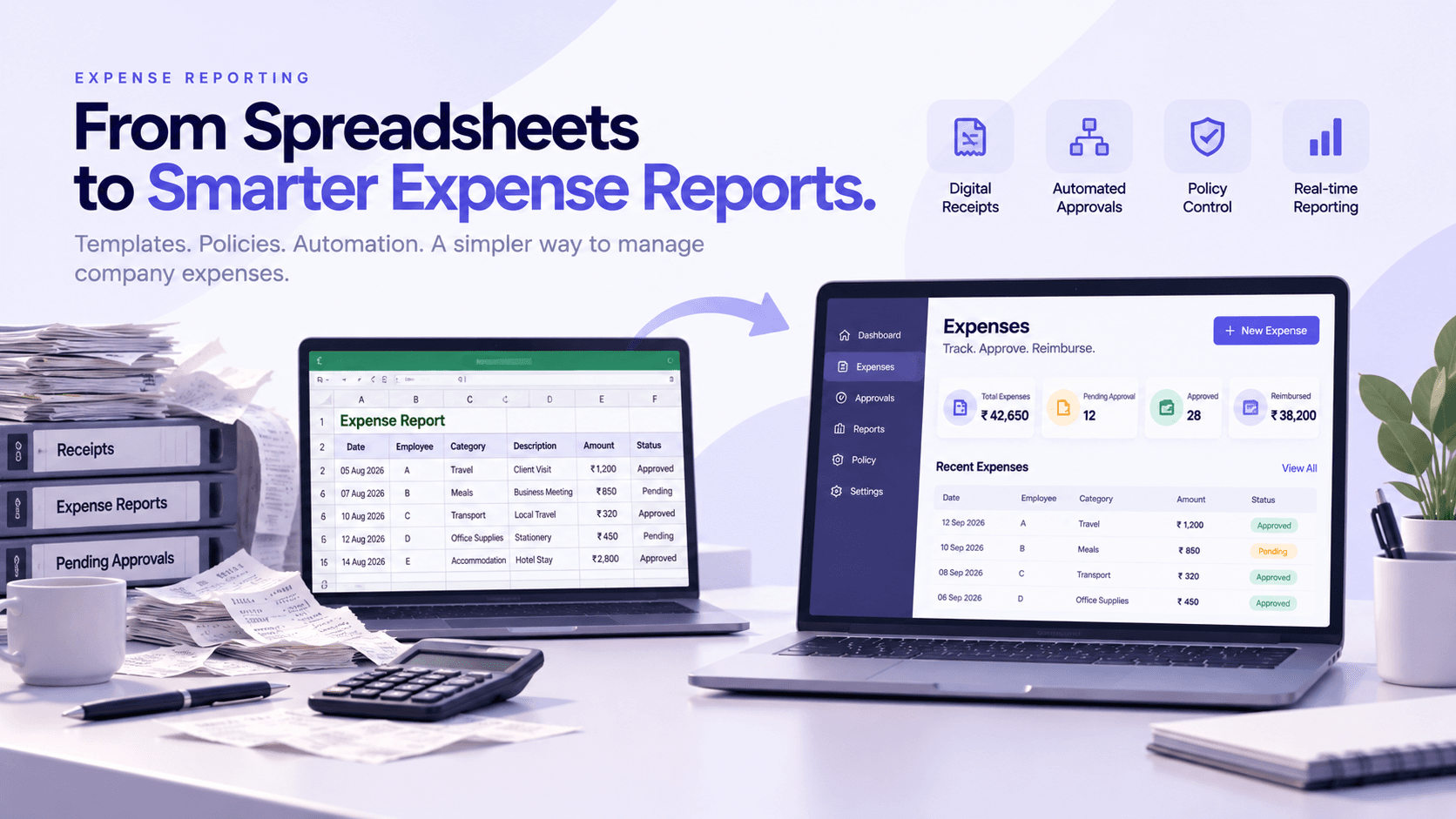
Handling employee expenses looks like an easy finance task – until the first receipt comes from an employee. An Excel spreadsheet can be the right solution for small businesses in this case. But the higher the number of expenses, the harder it gets to prepare a company expense report manually.
A good expense report template can help organize expenses and receipts and speed up the approval process. But to keep the records accurate and ready for auditing, one has to know how to track expenses in Excel, design a decent expense report sheet, and what a good company expense report policy should look like.
This article tells you how to design the best expense report process and recognize when it needs automation.
What Is a Company Expense Report?
An expense report is a document created by employees to record their business expenses and ask for reimbursement. The main elements of an expense report usually include;
- Employee’s name and department
- Date of the expense
- Vendor or merchant
- Expense category
- Amount
- Payment method
- Business purpose
- Receipt
- Manager approval
- Reimbursement status
A properly structured expense report gives finance teams to keep track of how a company’s budget is being utilized.
Elements an Expense Report Template
An effective expense report template is filled with information needed for bookkeeping, approvals, and audits.
An Excel template for expense report can be:
DateEmployeeCategoryDescriptionAmountReceiptApproverStatus05 Aug 2026ATravelClient Visit₹1,200AttachedManagerApproved07 Aug 2026BMealsBusiness Meeting₹850AttachedManagerPending
In case of Excel sheets where businesses track their expenses, other columns can include department, project, cost center, location, tax amount, and mode of payment.
Thus a basic Excel sheet will transform into an efficient expense report sheet.
Tracking of Expenses in Excel
In case your business is tracking expenses via Excel sheets, follow the below-mentioned steps from the very first day.
- Make an Efficient Expense Report Sheet
Instead of having different forms filled by every employee, use a single efficient expense report sheet.
- Determine Expense Categories
The following are few examples of expense categories:
- Travel
- Accommodation
- Meals
- Transportation
- Office supplies
- Client entertainment
- Training
- Other business expenses
- Requirement of Receipt Documentation
Any reimbursable expenses should have documentation as per company policy wherever applicable.
- Include Approval Information
Your expense report template should contain the details of who approved the expense, what is the date of approval, and the status.
- Perform Reconciliation Often
Do not wait until the end of the year-end. You should review your expense report data often, such as on a weekly or monthly basis.
Develop Company Expense Report Policy
Excel files may be helpful for organizing data, but a company expense report policy sets out the policies that employees need to follow.
Your company expense report policy should include information on:
- Spending limit
- Receipt requirement
- Date of submission
- Approval requirement
- Travel policy
- Mileage allowance
- Non-reimbursable expenses
- Reimbursement timeline
- Violation consequences
For instance, you may require employees to submit the expense report within 15 days and receipts of those expenses which are more than a certain amount.
Setting out policies will help employees to submit their expense report easily and will help the finance team in processing the claims.
Issues with Spreadsheet-Based Expense Reports
Using Excel works well when expense amounts are low. However, growing companies tend to experience certain constraints.
Some of them are:
- Duplicated entries
- Wrong formulas
- Lack of receipts
- Inefficient version control
- Manual data entry
- Approval delays
- Troubles with expense reconciliation
- Poor real-time insight
With many employees tracking their expenses in Excel, finance departments might be forced to deal with multiple documents and email attachments.
At such a stage, an expense report spreadsheet becomes an additional task for your accounting department rather than a tool to boost their efficiency.
When Is It Time to Stop Using Excel?

There is no employee number that requires all companies to automate. The key point here is how much time your accounting department needs to manage expenses.
Consider automating when:
- Your company experiences rapid growth in expense numbers.
- Your accounting department wastes hours looking for receipts.
- Employees regularly submit incomplete reports.
- The manager approves expenses via email.
- Reimbursements happen too late.
- Real-time spending cannot be seen.
- Month-end reconciliation is taking too much time.
- Duplicate and out-of-policy claims become hard to detect.
If you find yourself facing several of these problems, you’ve probably outgrown Excel.
Improvements Expendesk Brings to Expense Reports
An automated system of maintaining an expense report and expense report sheet is offered by Expendesk.
Rather than using Excel to track expenses of employees, organizations can have everything related to expense submission, receipt management, approvals, reimbursements, and reporting in one place.
- Digitization of Receipts
Employees can upload their receipts to the system instead of attaching them to spreadsheets. This will make documentation storage more effective.
- Automated Expense Report
With the help of Expendesk, the expense report process will not require a lot of time to do data entry, which will save time for preparing reports manually.
- Approval Workflow Automation
Expenses claims will be able to go through the necessary approval process automatically following company policies, departments, or budgets.
- Policy Control
Your company expense report policy can be enforced by means of automated checking, which allows detecting missing documents, duplicates, and out-of-policy items.
- Centralized Reporting
Finance teams will not need to collect data from several Excel files; everything will be available in one platform.
- Better Spend Visibility
Automation will allow getting a better view of expenses of employees, departments, categories, and companies.
Excel vs. Automated Expense Management
FeatureExcel/ Google SheetsExpendeskExpense trackingManualAutomatedReceipt CaptureManual attachmentDigitalApprovalsEmail/ manualAutomated workflowsPolicy checksManualAutomatedDuplicate detectionManualAutomatedReportingSpreadsheet-basedCentralizedSpend visibilityLimitedReal-timeScalabilityLimitedBuilt for growing businesses
While Excel is still applicable for basic bookkeeping tasks, automation becomes crucial with an increasing volume of expenses, growing number of employees, and increasing complexity of approvals.
A well-developed expense report template can be useful in helping a small business put in place expense management basics. However, having a standard expense report form, a well-defined company policy on expense reports, and a set process for handling employee expenses in Excel can make a difference.
However, spreadsheets cannot help with all the tasks.
If financial teams spend too much time collecting receipts, validating claims, approving expenses, and reconciling expenses, then automation is the solution.
Expendesk helps businesses transition from Excel-based expense report preparation with its receipt capture, expense tracking, expense policy management, approval workflow, reimbursements, and reporting in one system.
For expanding businesses, the ultimate objective is not creating a better spreadsheet – it is building an expense management system that can scale with the business.
For growing companies, the goal isn’t simply to create a better spreadsheet. It’s to create an expense management process that scales with the business.